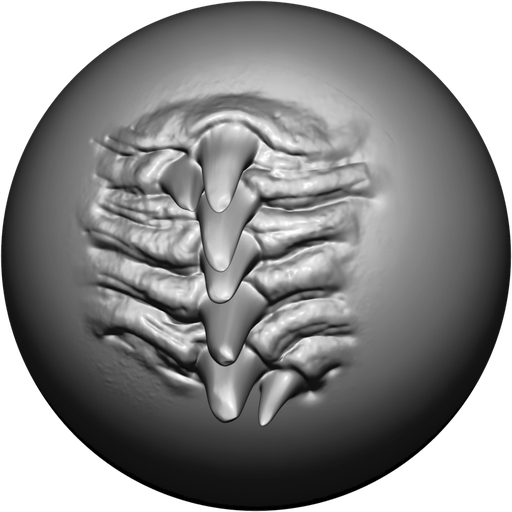
Space · point · release
Your shortcut. Your brushes. Right there.
Hold Space in Sculpt Mode and the wheel opens under your cursor. Move toward a brush and release to select without leaving the viewport.
Blender sculpting add-on / v1.0.010
Sculpt-Wheel turns your sculpting toolkit into a fast, configurable radial workflow, so your hands stay on the model and your ideas keep moving.
 Fast accessOpen the wheel instantly
 Practical controlKeep brushes close
 Custom layoutsBuild your own flow
 Blender nativeMade for sculpt mode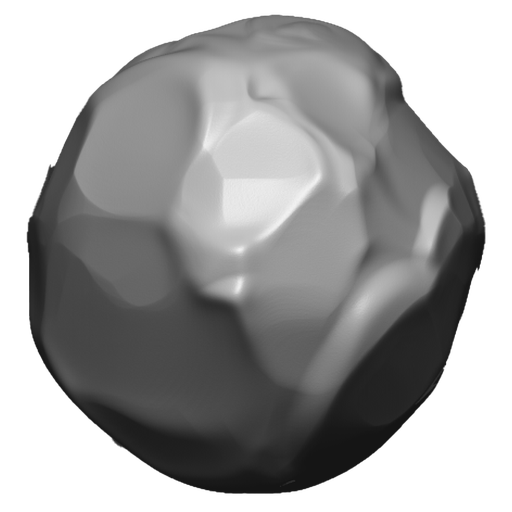
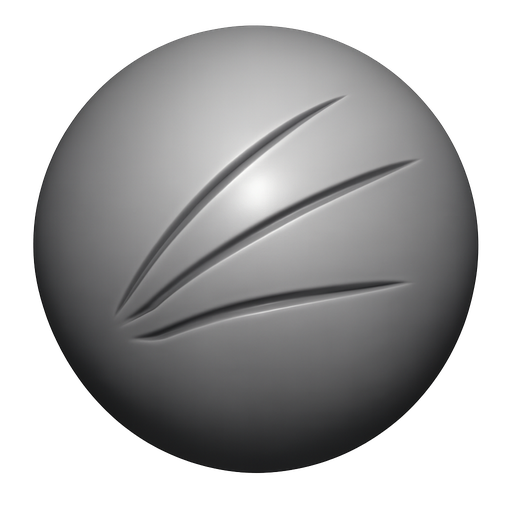
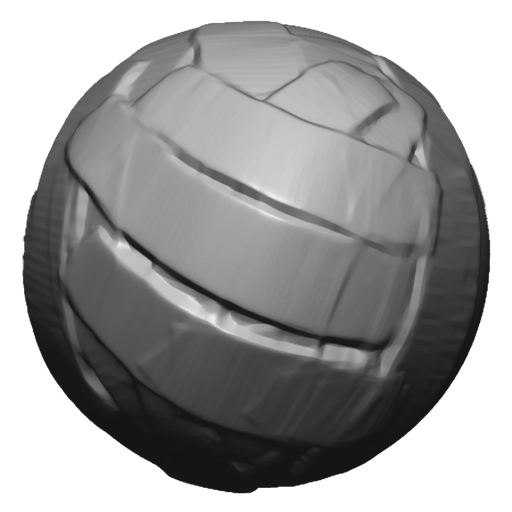
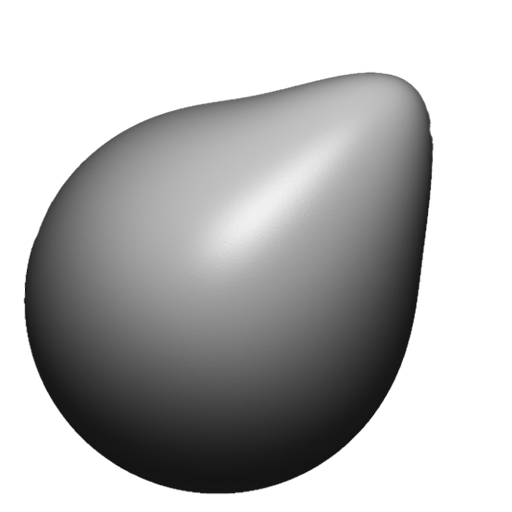
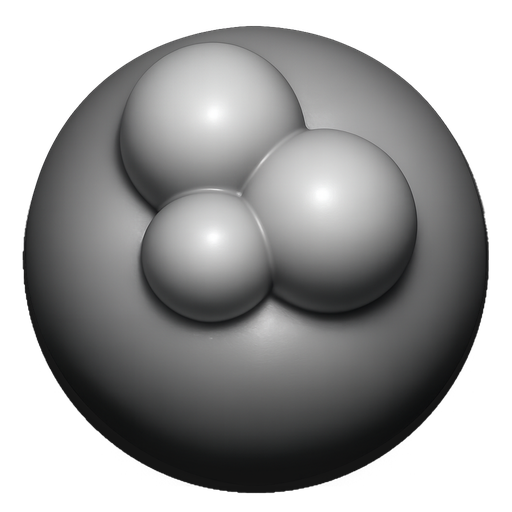
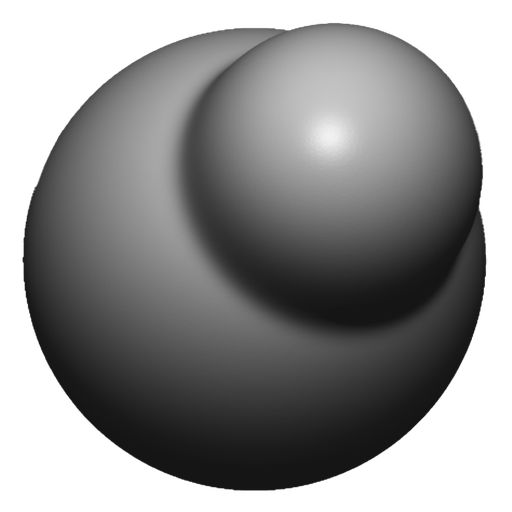
 ClayDraw SharpClay BuildupMoveBlobInflateCreaseStandard
See Sculpt-Wheel in the environment you already know: a familiar Blender viewport with the radial brush workflow ready under Spacebar.
 Blender 5.0
 Sculpt Mode ▾ViewSelectAddMeshFace Sets◉ ◉ ◉
 DrawSize 100 pxStrength 0.500Brush ▾Texture ▾Stroke ▾Falloff ▾Cursor ▾


Fast brush access, visual layout control, grouped variants, and Blender-native selection in one focused workflow.
Space · point · release
Hold Space in Sculpt Mode and the wheel opens under your cursor. Move toward a brush and release to select without leaving the viewport.
More options · same slot
Group up to three optional variants beneath one main brush and reach specialized tools from the same familiar direction.
Save · switch · sculpt
Save your wheel layouts as persistent presets and switch between them without rebuilding your brush setup.
Bring your own brushes
Bring brushes from an external Blender brush library into Sculpt-Wheel, place them in your preferred slots, and keep every favorite one gesture away.
Drag · drop · sculpt
Design each preset around the way you sculpt. Search Blender's brush library, drag any brush into a main or sub-brush slot, reorder the wheel, and preview every change instantly. Fine-tune the layout, then save it as a reusable preset that stays ready for your next session.
Purchase Sculpt-Wheel from the provider you already use, then download the Blender add-on.
Three clear steps take Sculpt-Wheel from a downloaded ZIP to a licensed, Blender-native brush workflow.
In Blender 4.3 or newer, open Edit > Preferences > Get Extensions. Choose Install from Disk, select the Sculpt-Wheel ZIP without extracting it, then enable the add-on.
Copy the Machine Code from Sculpt-Wheel's preferences, then send it with your Superhive receipt or order ID through the Superhive Inbox.
Paste the returned key and press Activate. Verification runs offline; enter Sculpt Mode and press Space whenever you need the wheel.

 Detail